OpenCode Integration
Connect OpenCode to 200+ models via LLM Gateway's built-in provider. No config files — select, authenticate, and code. Kimi K3, GPT-5 and Claude included.
OpenCode is an open-source AI coding agent for your terminal, IDE, or desktop. LLM Gateway is built in, so setup takes under a minute — no config files or npm adapters required. You get access to 200+ models from 40+ providers, all tracked in one dashboard.
Two Built-In Providers
OpenCode ships two LLM Gateway entries. They share the same endpoint and the same API key — only the model IDs differ:
| Provider in OpenCode | Model IDs | Use it for |
|---|---|---|
| LLM Gateway | anthropic/claude-opus-5 (pinned) | Pay-as-you-go keys. One entry per upstream deployment, carrying that deployment's own pricing, context limits, and capabilities. |
| DevPass (LLM Gateway) | claude-opus-5 (canonical) | DevPass plan keys, and pay-as-you-go when you want the gateway to pick the provider for you. |
Because pinned entries name the serving provider — "GPT-5.5 (Azure)" versus "GPT-5.5 (OpenAI)" — you can tell duplicate deployments of the same model apart and pick on price or region.
Using DevPass? Pick DevPass (LLM Gateway). Provider-pinned routing is not available on coding plans, so canonical model IDs are the ones that work.
Prerequisites
Before starting, you need to install OpenCode. Visit the OpenCode download page to install OpenCode for your platform (Windows, macOS, or Linux).
After installation, verify it works by running:
1opencode --version1opencode --versionSetup
Step 1: Launch OpenCode
Start OpenCode from your terminal:
1opencode1opencodeIn VS Code/Cursor:
- Install the OpenCode extension from the marketplace
- Open Command Palette (Ctrl+Shift+P or Cmd+Shift+P)
- Type "OpenCode" and select "Open opencode"
Step 2: Open the Provider List
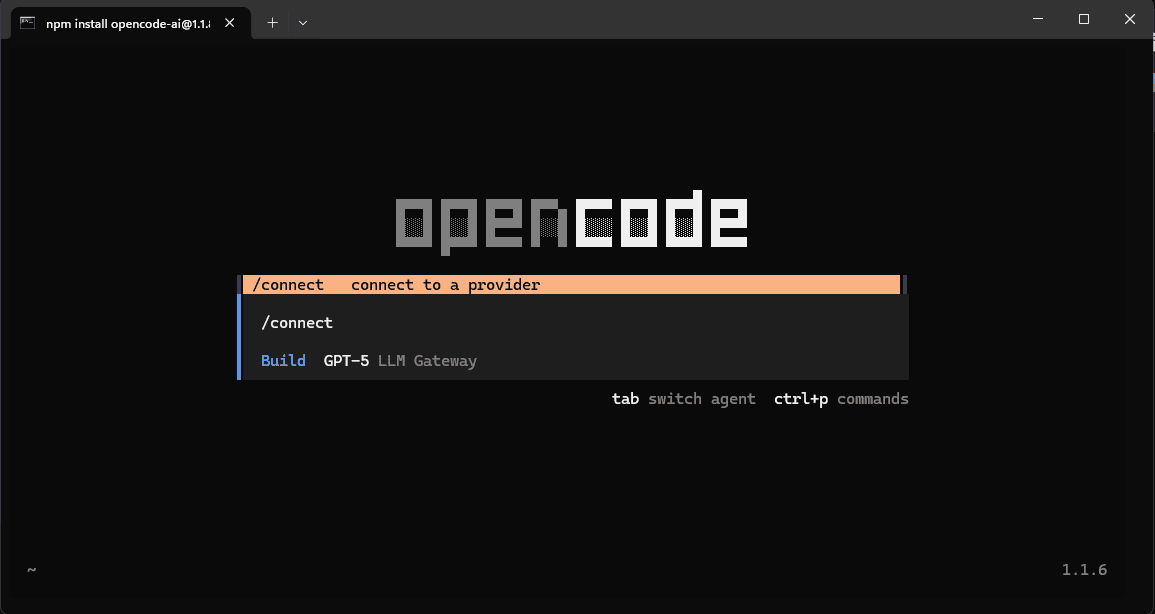
Once OpenCode launches, run the /providers or /connect command to open the provider selection screen:
Step 3: Select LLM Gateway
Both LLM Gateway entries are listed as built-in providers. Select LLM Gateway for pay-as-you-go, or DevPass (LLM Gateway) if you have a DevPass plan key:
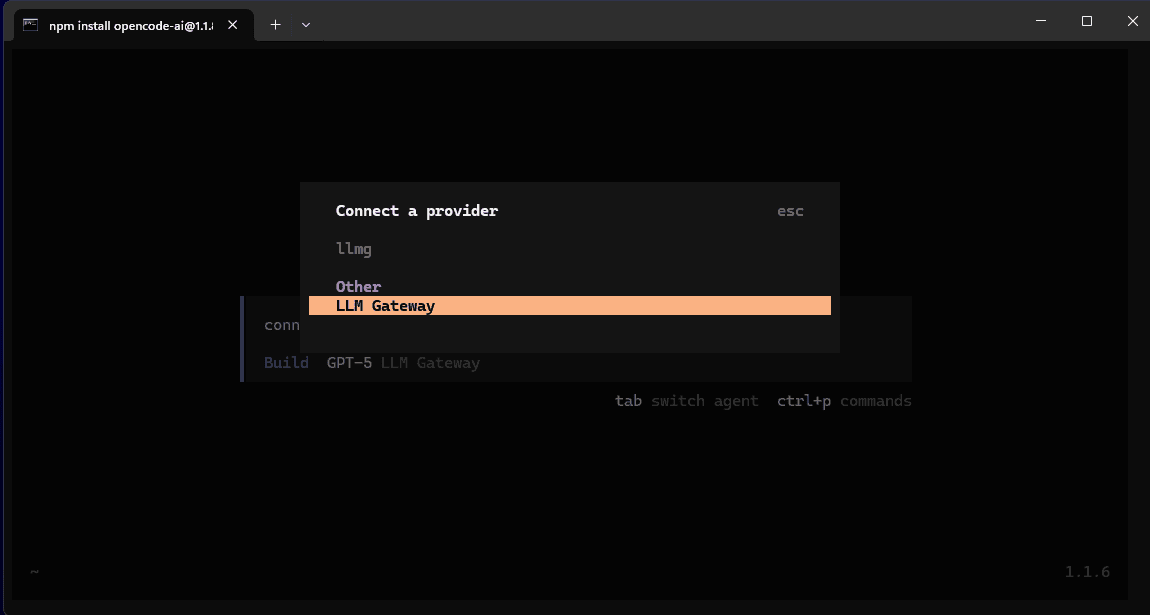
You can connect both — they take the same key, and each contributes its models to the picker.
Step 4: Enter Your API Key
OpenCode will prompt you for your API key. Enter your LLM Gateway API key and press Enter:
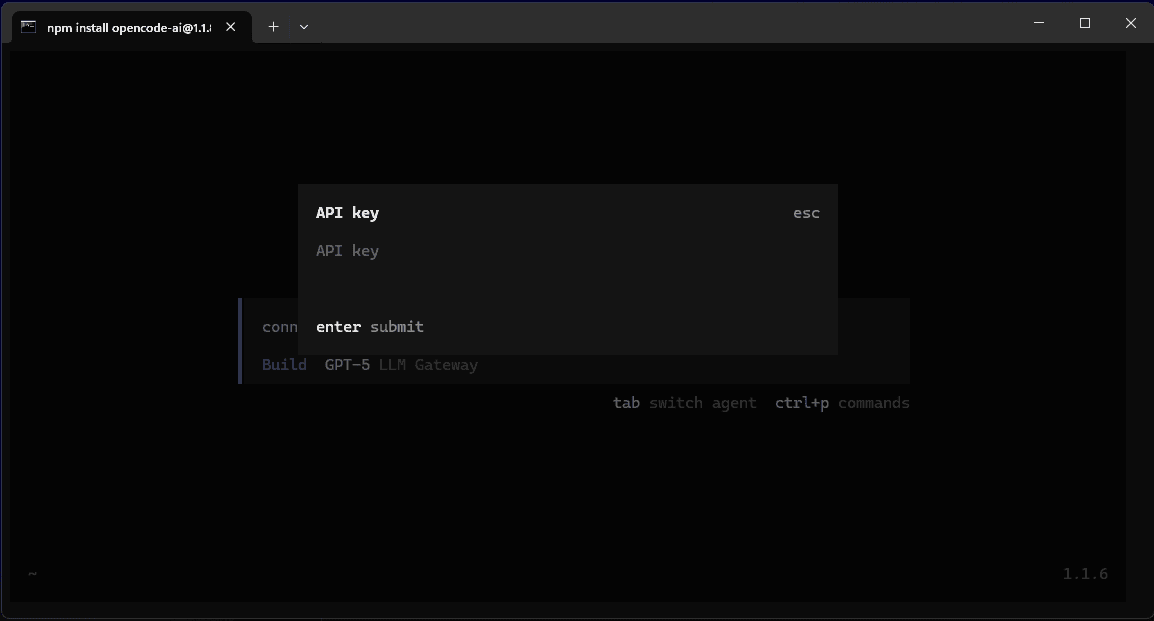
OpenCode will automatically save your credentials securely.
Where to get your API key:
Sign up for LLM Gateway and create an API key from your dashboard.
Step 5: Start Using OpenCode
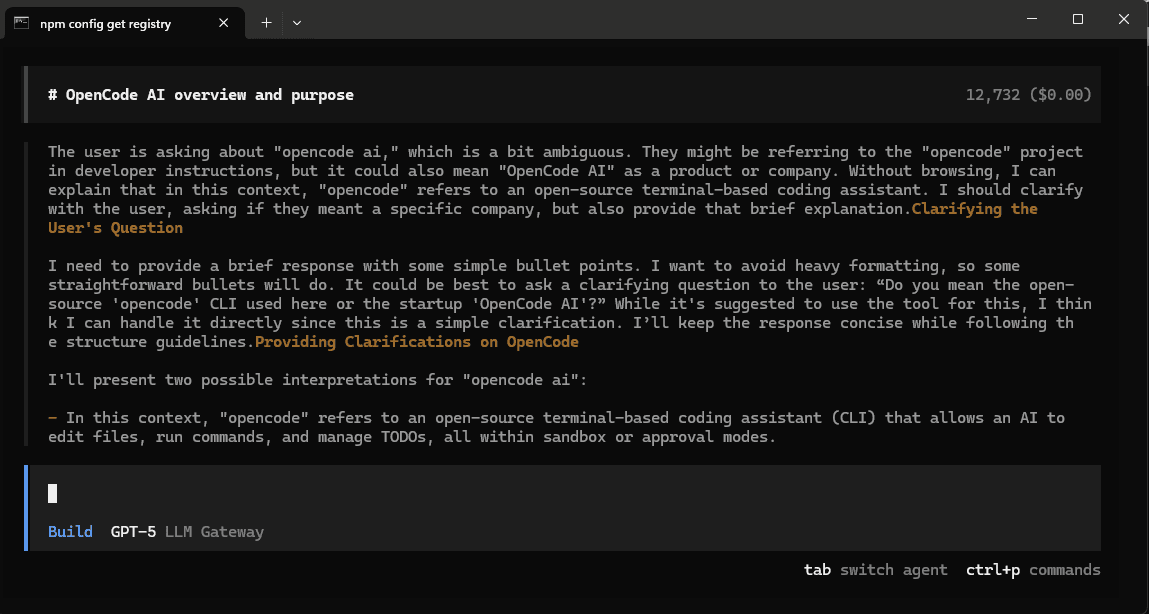
You're all set! OpenCode is now connected to LLM Gateway. You can start asking questions and building with AI:
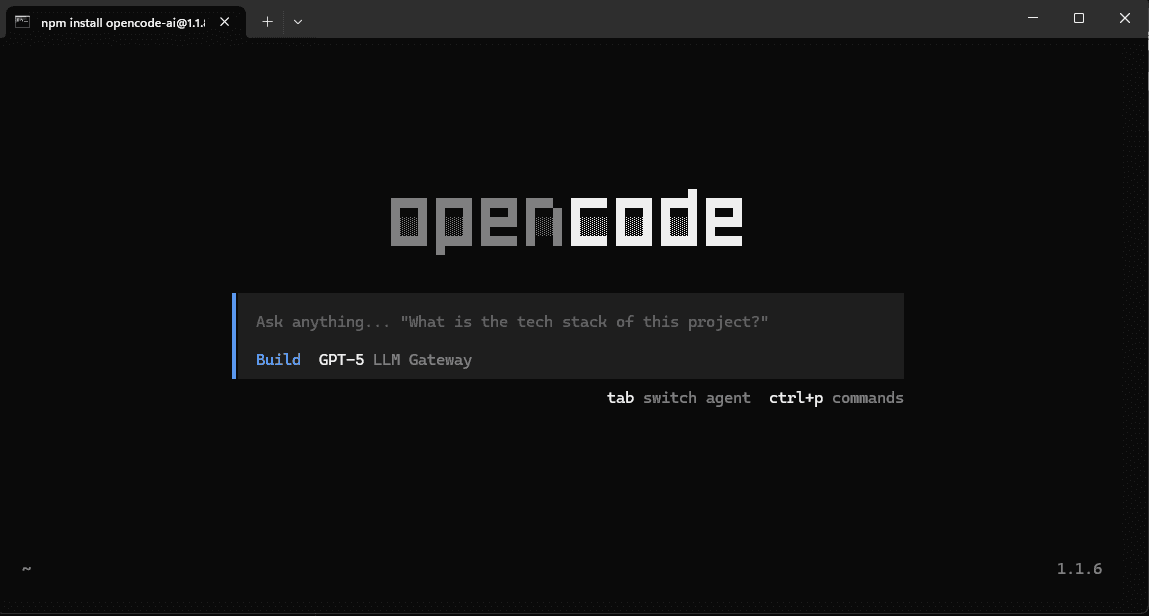
Try asking OpenCode about your project or request help with coding tasks:
Why Use LLM Gateway with OpenCode?
- 200+ models — GPT-5, Claude, Gemini, Llama, and more from 40+ providers
- One API key — Stop juggling credentials for every provider
- Pin a provider — Choose the exact upstream deployment, with its own pricing and limits, or let the gateway route for you
- Cost tracking — See what each coding session costs in your dashboard
- Response caching — Repeated requests hit cache automatically
- Volume discounts — The more you use, the more you save
Adding Custom Models
The built-in providers cover the standard LLM Gateway catalog. If you want to add custom model aliases or a model not yet listed, you can create a config.json in your OpenCode configuration directory:
macOS/Linux: ~/.config/opencode/config.json
Windows: C:\Users\YourUsername.config\opencode\config.json
1{2 "provider": {3 "llmgateway-providers": {4 "models": {5 "deepseek/deepseek-v3.2": {6 "name": "DeepSeek V3.2 (DeepSeek)"7 }8 }9 }10 }11}1{2 "provider": {3 "llmgateway-providers": {4 "models": {5 "deepseek/deepseek-v3.2": {6 "name": "DeepSeek V3.2 (DeepSeek)"7 }8 }9 }10 }11}Both entries are built-in providers, so you only specify what you're adding — OpenCode merges your config with the built-in definition, and npm, name, and baseURL don't need to be repeated. Use llmgateway-providers for pinned provider/model IDs and llmgateway for canonical ones.
After updating config.json, restart OpenCode to see the new models.
Switching Models
Select a different model directly in the OpenCode interface, or update the model field in your configuration:
1{2 "model": "llmgateway-providers/anthropic/claude-opus-5"3}1{2 "model": "llmgateway-providers/anthropic/claude-opus-5"3}Canonical routing uses the other provider instead — llmgateway/claude-opus-5, which lets the gateway choose the upstream provider.
Troubleshooting
Connection timeout
Check that you have an active internet connection and that your API key is valid from the dashboard.
Custom models not showing up
After editing config.json, restart OpenCode completely for changes to take effect.
404 Not Found errors with custom config
If you are using a custom config.json, verify your baseURL is set to https://api.llmgateway.io/v1 (note the /v1 at the end).
Configuration Tips
- Global configuration: Use
~/.config/opencode/config.jsonto apply settings across all projects - Project-specific: Place
opencode.jsonin your project root to override global settings for that project - Model selection: You can specify different models for different types of tasks using OpenCode's agent configuration
Get Started
Ready to enhance your OpenCode experience? Sign up for LLM Gateway and get your API key today.